Sound forge does not need any introduction; we can straight away hit right on the money.
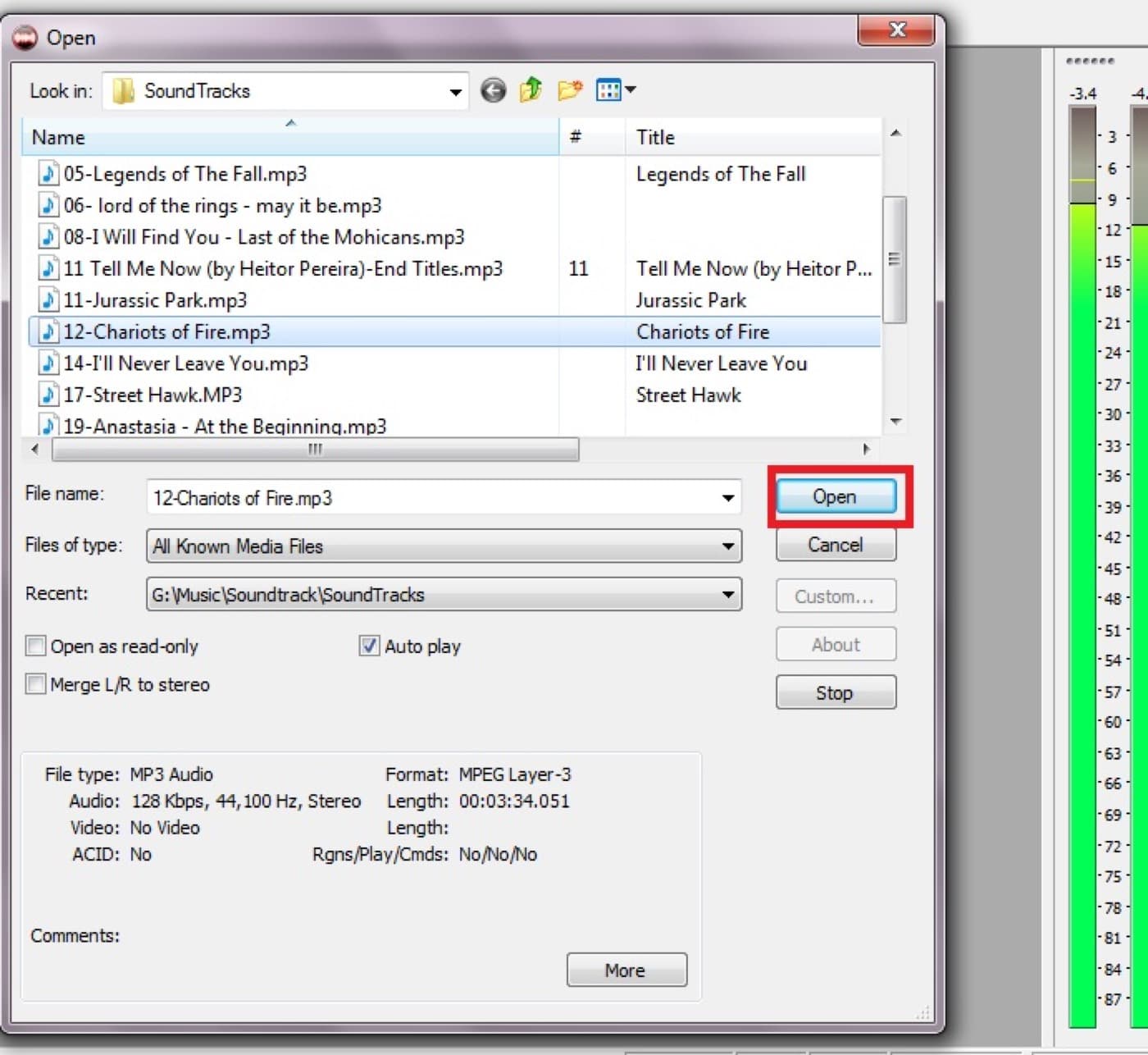
File open:
Choose your track that you want to edit, when you select the track the levels (monitor) will start as tracks starts to play the green bars will move.

Building peeks:
Once the track is selected and it is imported into the workspace by building peeks. The peeks are based on the tempo and based on the music.

Mark in – Mark out:
Place the mouse in the place where you want to mark in( start point) and drag to the place where you want to mark out (stop point)

Trim or crop:
Once mark in and mark out is set, place the muse point in the selected area and right-click for option, there you will see “Trim/Crop” click that option to crop the area that you have selected.

Save as:
Now just go to the File > save as there will be a lot of option, do not make any change just make sure file type is set as *.mp3. Give good file name then you are set to go.

Now you have completed basic editing that is crop and saving a small area in a track. We will see lot others setting in upcoming tutorials. If you have any questions, contact me.